


Google Sheets is one of the simplest ways to pull data from a website into a spreadsheet, using built-in import functions like IMPORTHTML, IMPORTXML, IMPORTFEED and IMPORTDATA, and customized RSS and JSON feeds from web extraction tools like New Sloth with zero coding. For data analysis, market research, market intelligence, competitive intelligence, and product teams that need website data in spreadsheets, it makes Google Sheets a practical way to monitor competitor pricing, regulatory updates, news headlines, product reviews, and other continously changing content for reporting and dashboards.
This guide walks through step-by-step methods to extract website data into Google Sheets, including when to use native formulas, how to extract structured data from websites into Google Sheets compatible feeds with New Sloth's Feed Builder, how to scrape from JavaScript-heavy pages into a spreadsheet, and how to automate refreshes with Google Apps Script and scheduling. The goal is to make web data collection more reliable and less manual, so your sheets stay current without constant copy-paste maintenance.
Quick start: simplest way to import a table from a website
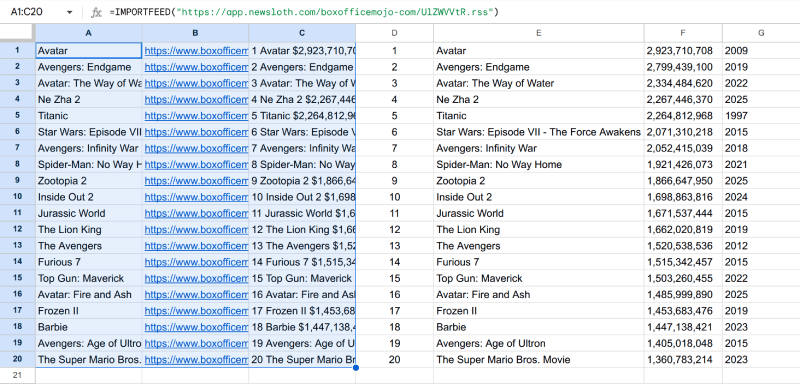
The fastest way to get started is by combining New Sloth's Feed Builder with the in-built IMPORTFEED function in Google Sheets. Here is a real example using the IMDb Box Office data.
Your first step is to add the IMDb Box Office page for highest-grossing movies data (URL: https://www.boxofficemojo.com/chart/top_lifetime_gross/?area=XWW) as a source in New Sloth. Inside the Feed Builder's page preview, select a movie title as the feed item title and select the whole table row (rank, title, year, lifetime gross) as the feed item summary. New Sloth will then generate auto-refreshing data feeds in both RSS/XML and JSON format for that page.
Next, you can create a new Google Sheet by visiting sheets.google.com. In cell A1 of a blank sheet, enter the exact formula to import the top movies RSS feed (replace with your New Sloth feed URL): =IMPORTFEED("https://app.newsloth.com/boxofficemojo-com/abcdef.rss") and press enter. You should see a complete table with movie titles, rank, year, and lifetime gross values automatically expanding down and to the right, filling all the rows and columns. You can even use SPLIT or REGEXEXTRACT function to extract the feed items' text data into separate columns as needed. If the formula fails, Google Sheets will usually show an error message in the cell.
The feed will automatically refresh with latest updates, and the sheet will refresh automatically about every one hour or so while the sheet is open, so the table stays reasonably up to date without any manual work.
Built-in Google Sheets web scraping functions (no add-ons)
Google Sheets includes four native functions for importing unstructured or structured data from the web. Each serves a different purpose, and none requires you to write code or install an add on. Here is an overview:
IMPORTHTML extracts data from tables and lists on web pages. The IMPORTHTML formula requires three parameters: the URL enclosed in quotation marks, the data type (either "table" or "list"), and an index number starting from 1. For example, to scrape data from the IMDb Top 250 page, you would use =IMPORTHTML("https://www.imdb.com/chart/top/","table",1). IMPORTHTML requires a URL, data type, and index number to locate the target element.
IMPORTXML imports data from XML and HTML documents using XPath queries. XPath queries are used with the IMPORTXML function in Google Sheets to specify exactly which elements you want to extract. For instance, you could pull all headline links from a news site with a single formula. IMPORTXML requires a URL and an XPath query as parameters.
IMPORTFEED imports RSS or Atom feeds into Google Sheets. You can use it with any valid feed URL. An example is the New York Times Technology RSS feed: =IMPORTFEED("https://rss.nytimes.com/services/xml/rss/nyt/Technology.xml"), which returns titles, links, and publication dates.
IMPORTDATA fetches data from CSV or TSV formatted URLs. If a government portal like data.gov publishes a dataset as CSV, you can reference its direct download link and pull the complete document into your sheet.
All these functions work inside Google Workspace and behave like regular formulas, fitting normally with files stored and shared through Google Drive. You can combine them with FILTER, QUERY, and VLOOKUP to match, control, and transform the output.
How to extract data from any website with IMPORTFEED (step by step)
IMPORTFEED is the simplest way to extract data from websites into Google Sheets when you pair it with New Sloth's Feed Builder. Here is a concrete example using the book catalogt books.toscrape.com.
Add the books.toscrape.com page as a source in New Sloth. Then select the book title as the feed item title, and the whole book details block (price, cover image, availability) as the summary. New Sloth will generate data feeds in RSS and JSON format. The feed will include the book title, summary with price, and book cover image with clean column headers ready for spreadsheet use.
In your Google Sheet, enter the IMPORTFEED formula pointing to the generated RSS url. After you press enter, you will see the catalog present in your sheet with all the rows expanding automatically. The same workflow also works well for structured public sources like Wikipedia tables once they are extracted as a feed. You can learn more about what the feed builder can extract from any webpage.
This approach works well for static HTML pages as well as modern JavaScript-heavy sites that render content dynamically, because New Sloth handles the headless browser rendering before extracting relevant content and creating a feed.
Working with RSS and JSON feeds instead of direct scraping
Some sites offer their official RSS feeds, but many do not. New Sloth's Feed Builder can generate custom RSS or JSON feeds from any public webpage, and it is better to import that instead of scraping and parsing raw html directly.
For example, Wired publishes a feed at https://www.wired.com/feed/. You can import it with =IMPORTFEED("https://www.wired.com/feed/","items title",FALSE,10). IMPORTFEED can optionally take parameters to control which columns appear and how many rows to return. The best method for data import depends on the website's structure and whether a feed already exists.
When sites do not provide good feeds, New Sloth's Feed Builder fills the gap:
- It monitors unstructured web pages continuously and detects new content
- It turns them into structured RSS/XML or JSON feeds with deduplication
- It keeps feeds updated on a schedule you control
Once New Sloth builds a feed, users can simply plug its RSS url into IMPORTFEED or use Apps Script to fetch the JSON feed into their Google Sheet. A concrete scenario: you need to track competitor press releases across five domains. Instead of writing five separate IMPORTXML formulas that break when layouts change, create five sources in New Sloth and use a merged RSS feed to import everything into one sheet with a single prompt formula call.
Handling JavaScript-rendered pages and blocked content
Many modern websites load data with JavaScript and block web scraping bots, so IMPORTHTML and IMPORTXML do not see the real content. IMPORTXML can't access JavaScript-generated tags because Google Sheets formulas only fetch the initial html, not the fully rendered DOM.
Consider a realistic example: a SaaS competitor's changelog page that renders a table client-side via a React app calling an internal API. When you try to scrape data with IMPORTHTML, you get an error or a blank result because the tag you want to target simply does not exist in the raw response your browser would load differently.
Moreover, some websites block automated bot requests or use anti-scraping protections like Cloudflare or Datadome, making content behind web firewalls inaccessible through basic import functions.
In these cases, users need an external web scraper or web data extraction platform that can handle sessions, cookies, JavaScript, and automatic unblocking. New Sloth acts as a solution here: it unblocks and loads pages like a real browser, executes JavaScript, and outputs clean feeds ready for importing into Google Sheets.
Keeping imported data fresh and reliable in Google Sheets
Google Sheets refreshes imported data every hour automatically when the spreadsheet is open, but timing is not guaranteed. These functions automatically update if the source website changes, though Google caches results to reduce server load.
Data also refreshes when you edit or retype the formula cell, but not on every manual page refresh. Common errors include: the error "Array result was not expanded" which indicates data overlap when surrounding cells are not empty, and "Result too large" which occurs with excessive IMPORTXML data when the node-set returned is too massive. Volatile functions like NOW() can't be used in import functions as parameters - use static helper cells instead.
Google Sheets has a practical limit of about 50 import function calls per spreadsheet and a total cell limit of 10 million cells. Beyond these numbers, performance degrades. New Sloth automatically monitors and extracts structured data from continuously updated websites much faster and simpler than managing dozens of fragile import formulas, which can reduce manual troubleshooting and support work when many imports are running at once.
Going beyond formulas: using Apps Script for JSON feeds and APIs
When you hit Google Sheets function limits, you can extend your workflow with Google Apps Script - a JavaScript runtime built into Google Workspace to automate sheets, Docs, and more.
A simple outline: use UrlFetchApp.fetch() to call a New Sloth JSON feed url, parse the response with JSON.parse(), then write the results into your sheet row by row. Here's some sample code to import JSON into Google Sheets using an Apps Script:
function loadJsonToSheet() {
  const url = "https://app.newsloth.com/website-com/abcdef.json"; // Replace with your New Sloth JSON feed URL

  const sheet = SpreadsheetApp.getActiveSpreadsheet().getActiveSheet();
  sheet.clear();

  // Fetch JSON
  const response = UrlFetchApp.fetch(url);

  // Parse feed items
  const data = JSON.parse(response.getContentText()).items;

  // Ensure we have an array
  const rows = Array.isArray(data) ? data : [data];

  if (rows.length === 0) return;

  // Use keys from the first object as headers
  const headers = Object.keys(rows[0]);
  sheet.appendRow(headers);

  // Write data
  const values = rows.map(row =>
    headers.map(key => row[key] ?? "")
  );

  sheet.getRange(2, 1, values.length, headers.length).setValues(values);
}
To use this Apps Script, open your Google Sheet, go to Extensions > Apps Script, paste the code into the editor, replace JSON url, and save and run loadJsonToSheet() function (authorize the script on the first run). Apps Script can schedule triggers (hourly or daily) so that data from New Sloth feeds is updated periodically, even when the document is closed.
The Developer API gives engineering teams even more control to manage sources programmatically.
This method is useful when the data format is JSON instead of XML, or when more control over pagination and mapping is needed. Most professionals and data teams start with formulas, and move to Apps Script when they need more automation or complex transforms.
Automating data refresh and scheduling updates
Beyond Google Sheets' hourly updates, Apps Script triggers let you automate data refreshes on a schedule that fits your workflow. You can navigate to Extensions > Apps Script in your Google Sheet, create a time-driven trigger, and set it to run every hour, every six hours, or daily.
This is critical for scenarios like daily competitor price tracking or news monitoring, where stale data means missed stories and delayed research. However, free Google accounts have script execution limits of about six minutes per run, which caps how much you can process in a single cycle.
New Sloth's continuous feed updates complement Google Sheets automation perfectly. Since New Sloth monitors sources independently and keeps feeds current, your Apps Script only needs to fetch already-structured, already-deduplicated content, saving processing time and reducing the chance of errors.
How New Sloth simplifies web data extraction into Google Sheets
As a data engineer, I can tell you that direct Google Sheets web scraping hits limits fast in real-world projects. Missing feeds, JavaScript pages return nothing, breaking formulas, and managing 50+ import calls across a spreadsheet becomes a maintenance nightmare.
New Sloth is a cloud-based content monitoring and web data extraction platform built for market research, market intelligence, and competitive intelligence teams. Its Feed Builder turns unstructured, continuously updated webpages like news articles, insights, blogs, press releases, regulatory notices, tender portals, products, prices, jobs, real-estate listings etc., into clean, RSS/XML and JSON feeds that stay current.
Concrete use cases include tracking EU regulatory updates, monitoring competitor product changelogs, and aggregating industry news across dozens of domains. The feeds integrate with Google Sheets through IMPORTFEED for RSS/XML, or a small Apps Script snippet (see code above) to fetch JSON and write it into a Google Sheet.
New Sloth supports AI and Machine Learning based smart content auto-detection to automatically locate relevant content on a source webpage. It also features an API so data teams can create and manage sources programmatically. The value is clear: no need to maintain custom web scrapers, less risk of breakage when websites change style or structure, and faster time from raw web content to analysis-ready spreadsheet data. It saves hours of manual formula maintenance every week.
Conclusion: choosing the right way to import website data into sheets
For light google sheets web scraping on simple public pages, the built-in functions: IMPORTHTML, IMPORTXML, IMPORTFEED, and IMPORTDATA, can give you basic results without external tools. They handle static tables, feeds, and CSV files well and require no code.
For ongoing media monitoring, market intelligence, and cross-site news aggregation at a massive amount of scale, a platform like New Sloth is more reliable and scalable. It handles the ground work of rendering JavaScript, unblocking protected pages, deduplicating content, and delivering clean, structured feeds on a schedule.
New Sloth is especially well suited for turning unstructured web content into structured feeds that can be imported into Google Sheets and Microsoft Excel for analysis, dashboards, internal reporting, and other automated workflows. Start by building a small Google Sheet with a few import formulas, then connect it to a New Sloth feed to notice the difference in data quality and automation. Your spreadsheet will thank you.